AI Employees · Email marketing · Deliverability · How-to
SPF, DKIM and DMARC explained for business owners
 Eimantas KazėnasFounder, RevflowsUpdated Published
SPF, DKIM and DMARC are three DNS records that prove your emails really come from your business. SPF lists which services may send for your domain, DKIM adds a signature that shows the email wasn't changed, and DMARC tells inboxes what to do with emails that fail and sends you reports. Gmail, Yahoo and Outlook now require them for bulk senders.
Key takeaways
- SPF says who may send for your domain. DKIM signs each email. DMARC says what to do with fakes.
- Gmail and Yahoo require SPF or DKIM from every sender, and all three from bulk senders.
- Outlook has required SPF, DKIM and DMARC from senders of 5,000+ emails a day since May 2025.
- Start DMARC at p=none, fix what fails, then move to quarantine and reject.
- Keep one SPF record per domain and stay within its 10 DNS lookup limit.
Your email tool says “sent”. The customer never sees it. Often the reason is three missing lines in your domain settings.
SPF, DKIM and DMARC are DNS records that prove your emails really come from your business. Inboxes like Gmail, Yahoo and Outlook check them on every email. Fail, and your message can land in spam or get rejected. Pass, and you also stop scammers sending fake emails in your name.
Getting delivered is the foundation of everything else in email. For the wider plan, see our complete guide to email marketing for small business. This page explains the three records in plain words and how to set them up safely.
SPF, DKIM and DMARC in plain words
Think of your emails as letters sent from your office.
What is SPF?
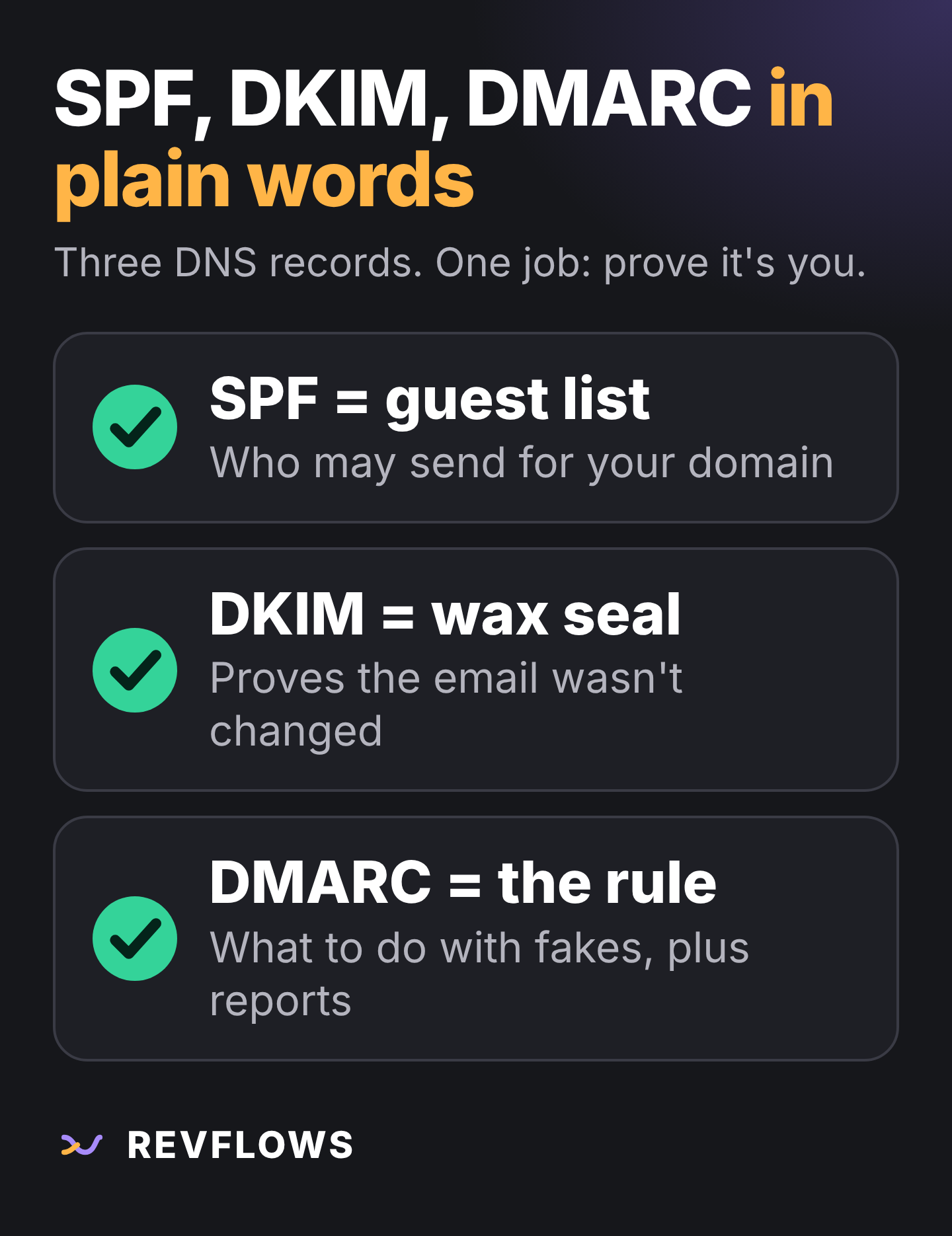
SPF (Sender Policy Framework) is the guest list. It’s a record on your domain listing every service allowed to send email as you: your mailbox provider, your email marketing tool, your booking software.
Google’s own example for a business that only sends through Google Workspace is one short line:
v=spf1 include:_spf.google.com ~all
When an email arrives “from” your domain, the inbox checks whether the sending server is on the list.
What is DKIM?
DKIM (DomainKeys Identified Mail) is the wax seal. Your sending service signs each email with a private key. You publish the matching public key in your domain settings. The inbox uses it to check the signature, which proves the email came from your domain and wasn’t changed on the way.
Each service that sends for you needs its own DKIM setup. Your email tool shows the exact records to add.
What is DMARC?
DMARC (Domain-based Message Authentication, Reporting and Conformance) is the rule and the report. It tells inboxes what to do with an email that claims to be from you but fails the checks, and asks them to send you reports.
Google’s DMARC setup guide lists three policies:
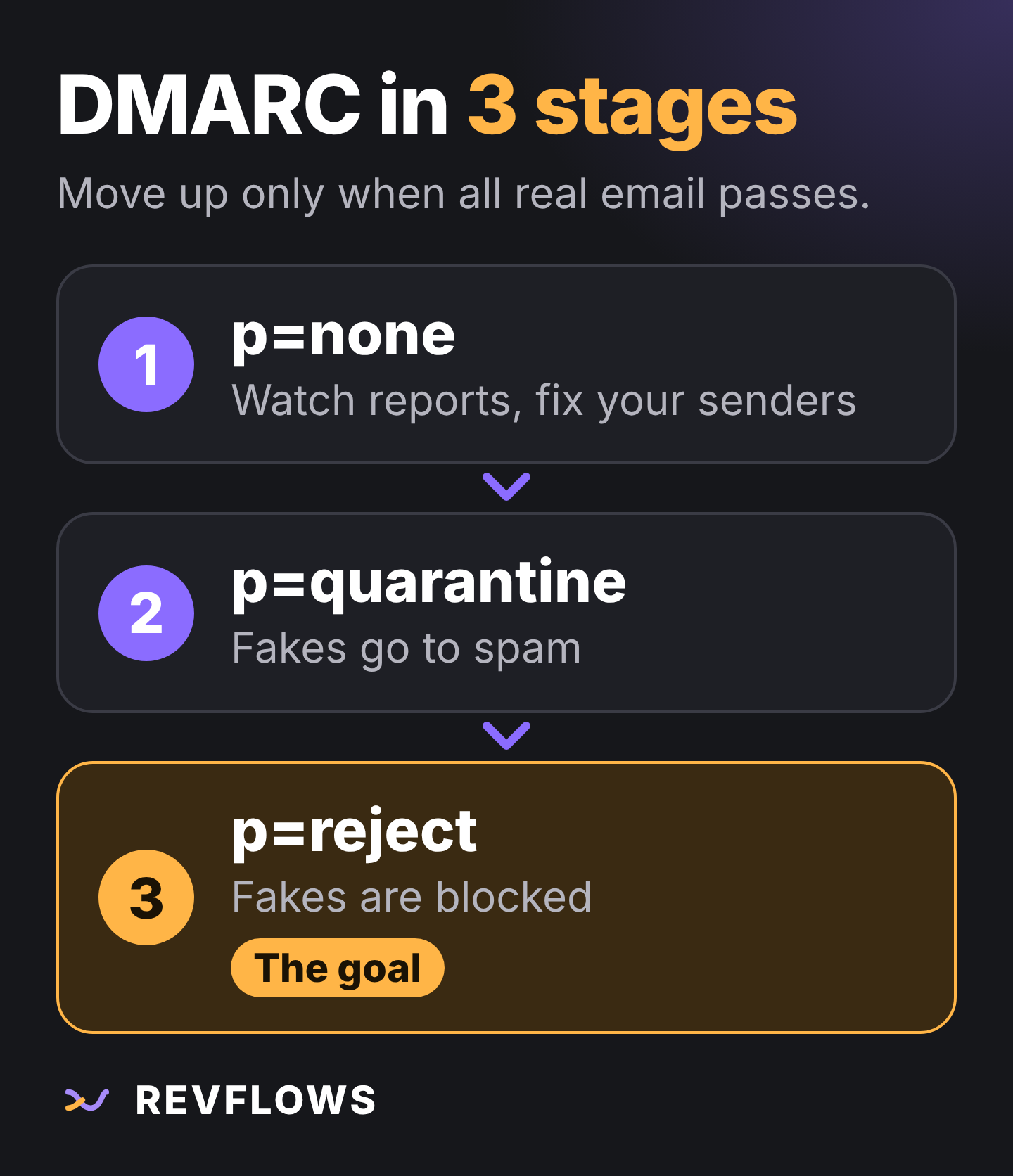
- none: deliver as normal, but report it to you.
- quarantine: send it to spam.
- reject: block it.
DMARC also checks alignment: the domain in the From line has to match the domain that passed SPF or DKIM. To pass DMARC, an email needs SPF or DKIM to pass and align. That is what stops someone using your name with their own server.
Why it matters now
In 2024 the big inboxes turned these from good practice into rules.
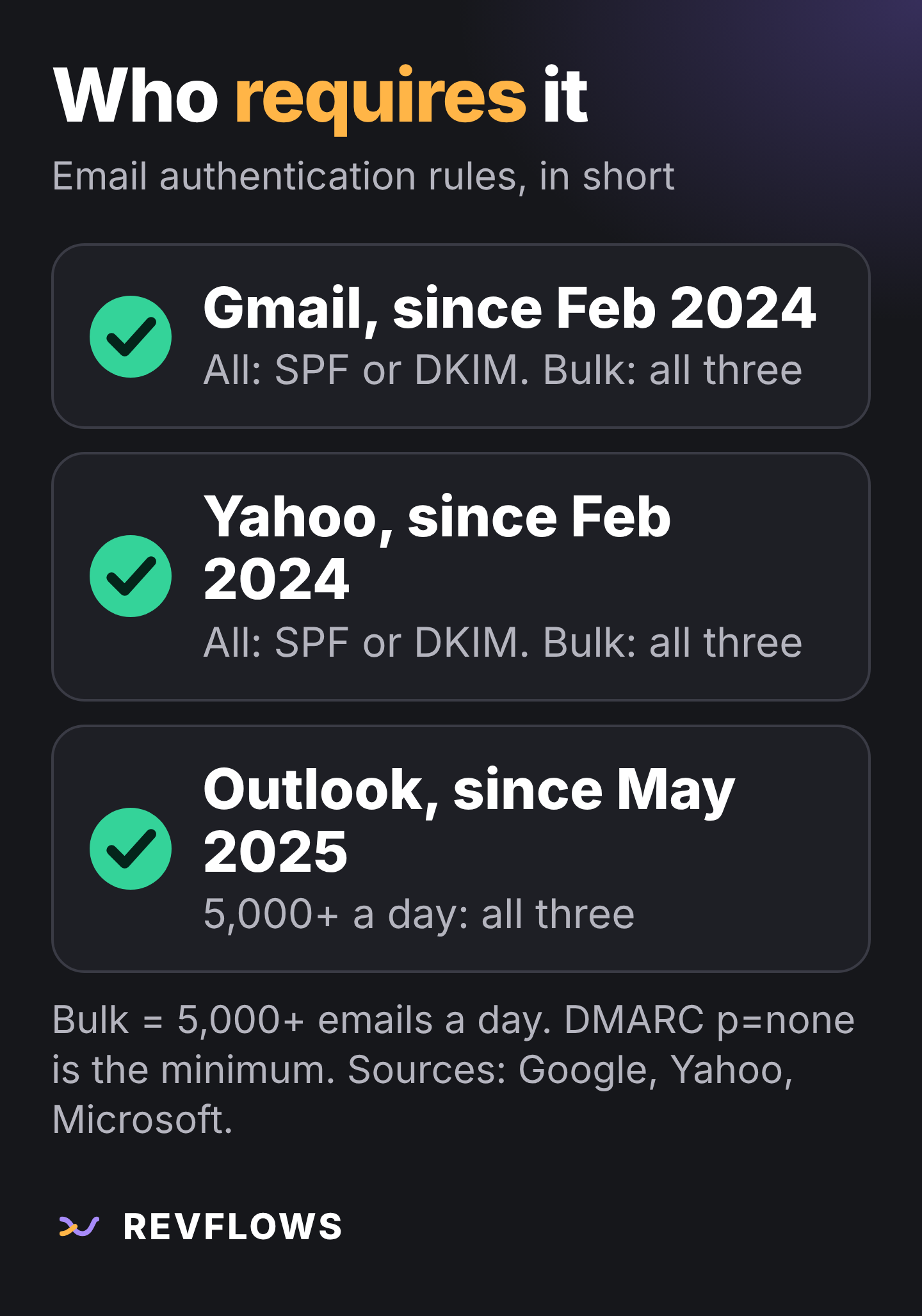
- Gmail: since 1 February 2024, its sender guidelines require every sender to set up SPF or DKIM. Anyone sending more than 5,000 messages a day to Gmail needs SPF, DKIM and DMARC (the policy can be none), plus one-click unsubscribe and spam complaints below 0.3%.
- Yahoo: its sender requirements match: SPF or DKIM for everyone, and for bulk senders both, plus a valid DMARC policy of at least p=none.
- Outlook: Microsoft requires SPF, DKIM and DMARC from domains sending more than 5,000 emails a day to its consumer addresses (outlook.com, hotmail.com, live.com). Its April 2025 update says non-compliant messages are rejected from 5 May 2025, with the error “550; 5.7.515 Access denied”.
Under 5,000 a day? Set up all three anyway. Your newsletter, invoices and booking confirmations share the same domain reputation. And without DMARC, nothing stops a scammer emailing your customers “from” you.
How to set up SPF, DKIM and DMARC
Most of this is copying records your email services give you into your domain host’s DNS settings. The order matters: SPF and DKIM first, DMARC last, and tighten DMARC slowly.
1. List every service that sends email for you. Your mailbox (Google Workspace, Microsoft 365), email marketing tool, shop or booking software, CRM, website forms, invoicing. Miss one, and its emails will fail later.
2. Publish one SPF record. One TXT record at your domain, starting with v=spf1, an include: for each sender, ending with ~all. Google recommends ~all. If you already have an SPF record, add to it. Don’t create a second one.
3. Turn on DKIM for each sender. Each service has a “domain authentication” or DKIM page with the records to add. Add them at your domain host, then switch signing on in the service.
4. Add a DMARC record at p=none. Google advises waiting 48 hours after SPF and DKIM. Then add a TXT record at _dmarc.yourdomain.com, for example:
v=DMARC1; p=none; rua=mailto:[email protected]
Use a dedicated mailbox or a DMARC report service for rua. Reports can be frequent.
5. Read the reports and fix failures. For a few weeks, look for any of your own services failing SPF or DKIM alignment. Fix each one until all your real email passes.
6. Move to quarantine, then reject. Change to p=quarantine, watch for problems, then move to p=reject. Now fake emails using your domain get blocked.
How to check your setup
- The quick way: send an email to a Gmail address, open it, and choose “Show original” in the message menu. Gmail shows whether SPF, DKIM and DMARC passed.
- The DNS way: a free online lookup tool shows the SPF, DKIM and DMARC records published on your domain.
- The ongoing way: DMARC reports show every server sending as your domain, including ones you didn’t know about.
Common mistakes
- Two SPF records. The SPF standard says a domain must not have more than one. Merge them into a single line.
- Too many lookups. SPF stops at 10 DNS lookups. The SPF standard says checks that need more return an error. Remove senders you no longer use.
- Forgetting a sender. The booking tool or invoicing app nobody remembered. Its emails fail once DMARC tightens.
- Jumping straight to p=reject. You may block your own invoices. Start at none.
- Setting it and never looking. New tools get added. Check your reports every few months.
Where this fits in email marketing
Authentication gets your emails delivered. What you send next decides whether they earn. Most of the money is in automated emails, like welcome, abandoned cart and win-back flows. See email marketing automation for the five to set up first.
Wondering what all of this costs to run? Price ranges are coming in how much email marketing costs.
Our view
- Do all three, whatever your size. It’s a one-time job that protects every email you send.
- Slow and steady on DMARC. None, then quarantine, then reject. Never skip the reports.
- Keep a sender list. Every new tool that sends email needs to be added to SPF and DKIM.
Get your emails into the inbox
Not sure your emails are landing? We check and set up SPF, DKIM and DMARC as part of running your email marketing, then build the flows that turn delivered emails into sales.
Questions
What are SPF, DKIM and DMARC?
They are three email authentication records you add to your domain's DNS. SPF lists the servers allowed to send email for your domain. DKIM adds a digital signature that proves the email came from your domain and wasn't changed. DMARC tells receiving inboxes what to do with emails that fail those checks and sends you reports.
What is DMARC and do I need it?
DMARC is a DNS record that tells inboxes whether to deliver, send to spam or reject emails that claim to come from your domain but fail SPF or DKIM. You need it if you send more than 5,000 emails a day to Gmail, Yahoo or Outlook addresses, and it is strongly recommended for everyone because it stops others faking your domain.
Do I need SPF if I have DKIM?
Set up both. Gmail and Yahoo accept SPF or DKIM for small senders, but anyone sending more than 5,000 emails a day must have both, and DMARC only passes when at least one of them passes and matches your From domain. Having both gives you a backup when one breaks, for example when email is forwarded.
How do I check if my email has DKIM?
Send an email to a Gmail address, open it, and choose Show original from the message menu. Gmail shows whether SPF, DKIM and DMARC passed. You can also use a free online DNS lookup tool to see the records published on your domain.
What DMARC policy should I use?
Start with p=none so nothing is blocked while you read reports and fix any service that fails. Then move to p=quarantine, which sends failing email to spam, and finally p=reject, which blocks it. Google recommends starting at none and tightening the policy over time.